Using JSHint with Sublime Text 2

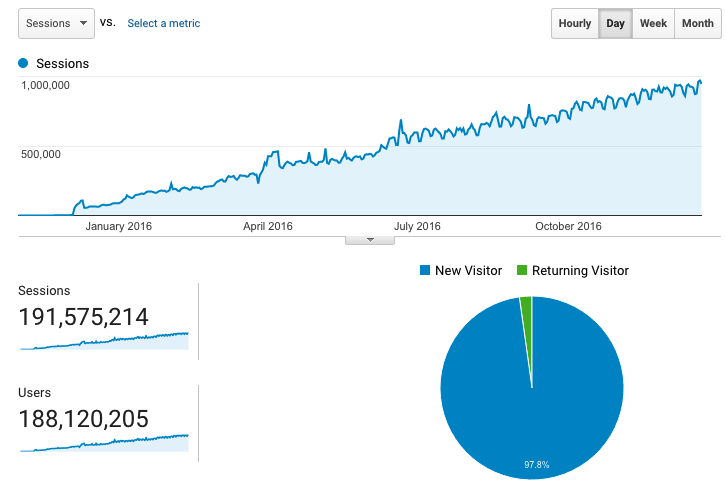
Awhile ago I was looking an editor that was cross platform, light weight, and awesome. I’d dabbled with Netbeans in the past, but found it to be a little heavy for what I needed it for. I ended up settling on Sublime Text 2. I have a hard time coming up with words for how awesome Sublime Text 2 is, so here’s a screenshot of my current window.

JSHint

One of the languages I find myself writing frequently is Javascript. As most of you know, Javascript has an assortment of odd conventions that can be pretty hard to remember. Code quality checkers like JSLint and JSHint exist for this reason. Prior to Sublime Text 2 I never bothered integrating either of those tools into my editor, but found myself needing to streamline my development process.

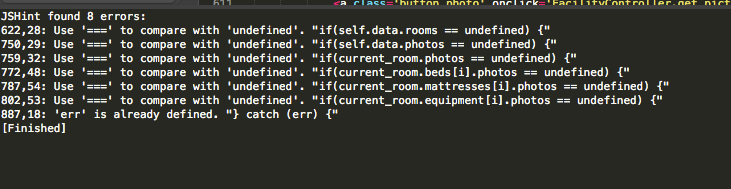
Sublime Text 2 provides an easy way to write build systems depending on which language you’re using. The sublime-jshint plugin takes advantage of this. All you do to make this work is go to the sublime-jshint GitHub page, and follow the instructions. Once it’s installed, run CTRL+B (CMD+B on Mac) while inside a Javascript file and you should see output like this.

HTML 5 Canvas: Saving to a File with PHP

So you’ve finally discovered the wonder that is the HTML5 Canvas element. Great! If you’re like me, the first thing I wanted to do with it was doodle on it. I eventually worked out how to map touch/mouse events to the canvas and draw lines, but I wanted to save my creations!

As it turns out, the Canvas element has a method called toDataURL(), which base64 encodes the entire Canvas element and returns it as a string. From there, you can just pump it over to a server and handle it from there. Here’s the step-by-step, which assumes you are also running jQuery on your site.

Step 1: Save the canvas and POST the data

var data = document.getElementById("myCanvasID").toDataURL();
$.post("process.php", {
	imageData : data
}, function(data) {
	window.location = data;
});

Step 2: Process the POST data, and save it to a file.

$data = substr($_POST['imageData'], strpos($_POST['imageData'], " ,") + 1);
$decodedData = base64_decode($data);
$fp = fopen("canvas.png", 'wb');
$fwrite($fp, $decodedData);
$fclose();
echo "/canvas.png";

Note: The first line of this script removes the header information that is sent with the encoded data.

Thats all there is to it. You can now easily save your HTML 5 awesomeness.

jQuery Map Function

Sometimes when you are making a web application you neeed to search some data. A lot of the time, it exists as an array in memory. I recently came across such a problem on a Phonegap project I’m working on. The app has to work offline, so my sorting needed to take place in Javascript. Since we’re using jQuery with this app, I decided to play with jQuery’s Map function. Map takes your array and performs an operation over each value in it. This was super handy in my case because it allowed me to search through my data at fast pace, without having to make an ajax call out to my database to do a search with MySQL.

Example:

var searchTerm = $("#searchField").val().toUpperCase();
var results = $.map(self.defaultProductList, function(product,i) {
	if(product.name.toUpperCase().search(searchTerm) != -1) {
		return product;
	}
});

searchTerm is the value that I’m searching for. .map takes an array as it’s first argument, and then a function as it’s second. I created an anonymous function that checks to see if the search term is in the current object. If it is, I return the value so it can be added to the final array. All in all, an excellent way of searching through data when you don’t have the luxury of a database to query.

CoffeeScript with WebSQL and jQuery

Lately I’ve developed a distaste for Javascript.  I like what Javascript has done for the web, but I hate the syntax.  I hate that there are little “Gotch Ya!”‘s all over the language.  I don’t have to worry about that too much anymore though since I’ve started using CoffeeScript.  If you interested in learning more about it, check out the official web site, and then my “Getting Started” guide.

Now that I’ve had a chance to dive in to CoffeeScript a bit more, I’ve started to integrate what I’m doing with other features and libraries to see what I can create.  For work I’ve been using a lot of WebSQL and jQuery, so that was the first place I took my new found CoffeeScript powers to.

Using jQuery with CoffeeScript is really, really, easy.  For instance, let’s say we want to Ajax a page into an array:

$.get("mypage.html", (data) ->
    myArray.push data
)

The syntax changes just a hair, but overall it looks a lot cleaner.

As mentioned previously, the other thing I’ve been doing a lot at work recently was working with WebSQL.  It’s been dropped by the W3C, but Webkit has implemented it already so it’s here to stay.  Anyways, CoffeeScript makes WebSQL a little more palatable.

#Start a transaction
db.transaction( (tx) ->
    query = "SELECT * FROM table"
    tx.executeSql(query, [], (tx, results) ->
        rLength = results.rows.length
        for(i=0; i < rLength; i++)
            alert results.rows.item(i).someColName
    )
)

With WebSQL and CoffeeScript, the syntax doesn’t change a ton, but I like the look of it better without the braces.

Another feature that I wanted to share with out about CoffeeScript is it’s equivalent to PHP’s key, value loop construct.  In PHP, it would look like:

foreach($key => $value as $myArray) {
    //do stuff
}

In CoffeeScript, the equivalent is:

for own key, value of myArray
    #Do stuff.

The benefit of the CoffeeScript version is that it can loop over object properties as well, not just arrays.  If you have any other cool features or examples of CoffeeScript usage, drop a link (or example) into the comments.

Getting Started with CoffeeScript

Note: You may also be interested in “CoffeeScript with WebSQL and jQuery“, which gives more examples of CoffeeScript code.

Lately in web development circles there has been a movement to make Javascript easier for everyone. Well, easier is probably the wrong word.  Lets just say that they want to “modernize” it’s syntax.  A little language has been gaining a lot of attention lately that does just this, and it’s called CoffeeScript.  A quick example of assigned on a condition:

big = true
number = 100 if big

Instead of:

var big = true;
if(big) {
   number = 100;
}

Anyways, this tutorial is about getting the CoffeeScript compiler up and running. To do this, you’re going to need Node.js and the Node Package Manager(NPM).

Step 1: Node.js

Getting Node to install is pretty straight forward. All you need to do is download the latest stable version from here and then run:

./configure
make
make install (may need to run as super user)

Step 2: Node Package Manager

Node Package Manager is the equivalent of EasyInstall for Python. It allows a user to install pre-made programs, like CoffeeScript, easily without worrying about build dependencies or any annoying stuff like that.

If you have Curl installed (most Linux/Mac users will), the easiest way to make this happen is to do the following:

curl http://npmjs.org/install.sh | sh

I personally ran into problems with this because of some permissions errors. If you run into this, check https://github.com/isaacs/npm/blob/master/README.md out which has extensive documentation on how to get around it.

Step 3: Install Coffee

Now that we have all of Coffee’s dependencies solved, you can install CofeeScript by doing:

npm install coffee-script

Step 4: Brew Some Cofee

Let’s make a math object…

math =
	cube: (x) -> x * x * x
	square: (x) -> x * x
 
startNumber = 2
cubeStartNumber = math.cube(startNumber)
squareStartNumber = math.square(startNumber)
alert "Cube: " + cubeStartNumber
alert "Square: " + squareStartNumber

Now, save this file to test.cs and then run coffee -c test.cs on the file. You will get a new file called test.js that looks like:

(function() {
  var cubeStartNumber, math, squareStartNumber, startNumber;
  math = {
    cube: function(x) {
      return x * x * x;
    },
    square: function(x) {
      return x * x;
    }
  };
  startNumber = 2;
  cubeStartNumber = math.cube(startNumber);
  squareStartNumber = math.square(startNumber);
  alert("Cube: " + cubeStartNumber);
  alert("Square: " + squareStartNumber);
}).call(this);

That’s it!

If you run in to any problems during the install process, drop a line in the comments and I’d be happy to help.

SVN Merge Example (Trunk to Branch)

I’m often in the situation where I need to merge changes from the trunk development into a branch.  I can never, EVER, remember the command, so I’m putting in here in hopes that I can reference it again and that other people might find it useful.

svn merge -r x:y svn://repositoryURL/repo/trunk/ .

So, how does it work? X is the revision that you branched at. This can also be the revision that you last merged changes from. Y is the version that you want to merge up to.  In most instances, HEAD is probably what you’re looking for.

Note:  Using –dry-run if you want to see the changes that will be made before actually doing it.  It takes some of the “this is scary” out of merging.

Load Javascript Dynamically With Lazy Load

One of the blessings (or plagues) or the “Web 2.0″ revolution is heavy use of Javascript.  Used properly, Javascript can enhance your user experience to nearly the level of a desktop application.  Used poorly, and you’re browser is going to crash and burn.  But this post isn’t about using Javascript, it’s about loading it.

You see, a large amount of web developers don’t think about how their web page is loaded.  They think that no matter where scripts are included, its going to take the same time to load.  Actually, this is true.  What we’re after is an apparent decrease in load time.  When you include Javascript files at the top of your HTML document, as soon as the browser encounters the Javascript it will load and execute it.  The problem here is that loading a Javascript file is a blocking call in most web browsers.  What does this mean to you?  It means that while the Javascript is loading, the rest of your page isn’t.  The apparent page load time has increased.

To get around this problem, some web developers have started including their scripts as the last element in the <body> tag.  Done this way, your entire page loads on to the screen before the Javascript starts to load.  The apparent page load time as decreased.  Yes, the script will still take the same time to download and execute, but now people will see content almost immediately.

But why should you include some Javascript files if you aren’t sure the user is going to make use of them?  Enter Lazy Load.  Lazy Load allows you to easily include Javascript or CSS files on the fly.  This is especially helpful when you have large files that need to be loaded.  For instance, a sweet new carousel for your site.  It’s probably pretty large, and the user is going to have to wait for it anyways.  Using Lazy Load you can decrease your site’s apparent and actual load time.  It’s also small (~800 bytes minified), so you won’t need to worry about the footprint.  Oh, it’s really easy too…

LazyLoad.js('http://example.com/foo.js', function () {
     alert('foo.js has been loaded');
});

Form Ajax : How to Create and Submit a Form Using Ajax

For the longest time, web developers were stuck submitting their forms in the normal way: Click a button, go to a processing page, redirect back.  However, now it is possible to submit a form without ever leaving the page with Ajax.  Ajax stands for Asynchronous JavaScript, which as stated before, basically means you can submit a form without ever leaving the page.

So how do you use form Ajax? First of all, we’re going use a JavaScript library called jQuery.  Don’t be scared of it though, jQuery makes JavaScript easy.  What jQuery allows us to do is use form Ajax without having to muck around with all the tedious JavaScript details (which trust me, is a GOOD thing).   Without further a due, here is how to submit a form with Ajax.

To download the full working code for this, click here.

Form Ajax Step 1:  The HTML Page.

1
2
3
4
5
6
7
8
9
10
11
12
13
14
15
16
17
18
19
20
21
22
23
24
25
26
27
28
29
30
31
32
33
34
35
<html>
<head>
<title>Form Ajax Tutorial</title>
<script type="text/javascript" src="jquery-1.4.2.min.js"></script>
<script type="text/javascript">
//After the document has loaded, it adds the following handlers
//to the web page.
$(document).ready(function() {
//When the form with id="myform" is submitted...
$("#myform").submit(function() {
     //Send the serialized data to formProcessor.php.
     $.post("formProcessor.php", $("#myform").serialize(),
     //Take our repsonse, and replace whatever is in the "formResponse"
     //div with it.
    function(data) {
          $("#formResponse").html(data);
     }
);
return false;
});
});
</script>
<head>
<body>
<h2&gt;Form Ajax Tutorial</h2>
<p&gt; Fill out some information &lt;/p>
<form id="myform">
<input type="text" name="firstName" value="" /><br />
<input type="text" name="lastName" value="" /><br />
<input type="submit" name="submit" value="Submit" />
</form>
<div id="formResponse">
</div>
</body>
</html>

For anyone who is used to HTML programming, this should all look very familiar.  The only confusing part is the JavaScript, but I’ll explain that here.  The first bit just includes the jQuery library.  This is crucial for form ajax to work.  The rest of the function is explained below:

  • $(document).ready() – This will add handlers to your web page only after the entire page has loaded.
  • $().submit() – This will catch the click of the submit button so that it doesn’t submit the form the normal way, but the Ajax way instead.
  • $().post() – This is the part that sends out data to the processing file.  It also has a callback function that will modify our page to contain data that the processing file sent back.
  • $().serialize() – Takes our form data and puts it into an easy to parse format.

Form Ajax Step 2:  The Processing Page

1
2
3
4
5
6
7
8
9
10
11
<?php
//Get the information that was sent from the form.
$firstName = $_POST['firstName'];
$lastName = $_POST['lastName'];
 
//Get the unix time stamp.
$unixTimeStamp = time();
 
//Print output for out web page to catch.
echo "Hello $firstName $lastName.  The local unix time is <b>$unixTimeStamp</b>";
?>

The processing page is very important for making form ajax work correctly.  What this file does is catch the data sent by the form, and then prints out some information.  The form is waiting for this information, and then will add it to your page.  Note:  This file is a .PHP file.  You need to be running a web server (or have access to one) that can process php files.

Form Ajax Step 3:  You’re Done!

Form Ajax used to be pretty difficult, but now that their are JavaScript libraries like jQuery, MooTools, and Scriptaculous, it’s easier than ever.  To download the full working code for this example, click here.