Caching WordPress Data with the Transients API

If you’re a plugin or theme developer, there may come a time when you need to execute a long running operation. It doesn’t need to be anything complicated, but something as simple as fetching a Twitter feed can take a significant amount of time. When you come across these types of situations, it’s handy to be able to store the data on your own server and then fetch a new copy of it every X hours. This is called caching, and WordPress convieniently comes packages with an excellent caching API called Transients .
Wordpress Transients API

The Transients API is surprisingly simple to use. In fact, it’s very much like using set_option and get_option except with an expiration time. If you aren’t familiar with caching at all, here’s the general workflow:

  1. If the data exists in the cache and isn’t expired, get it.
  2. If the data doesn’t exist in the cache or is expired, perform the necessary actions to get the data.
  3. Store the data in the cache if it doesn’t already exist or is expired.
  4. Continue from here using data.

When attempting to use the Transients API for caching, there are three functions that you need to be aware of: set_transient, get_transient, and delete_transient.

  • set_transient($identifier, $data, $expiration_in_minutes): This function stores your data into the database. The identifier is a string that uniquely identifies your data. Your data can be any sort of complex object, so long as it is serializable. The expiration is how long your want your data to be valid (ex: 12 hours would be 60*60*12).
  • get_transient($identifier): This retrieves your data. If the data doesn’t exist or the expiration time has passed, false is returned. Otherwise, the same data you stored will be returned.
  • delete_transient($identifier): This will delete your data before it’s expiration time. This is handy if you are storing post-dependent data because you can hook it into the save action so that every time you save a post, your cached data is cleared.

Now that we’ve covered the basics, how about a quick example?

if (false === ( $my_data = get_transient('super_expensive_operation_data') ) ) {
     $my_data = do_stuff();
     set_transient('super_expensive_operation_data', $my_data, 60*60*12);
}
 
echo $my_data;
 
function do_stuff() {
     $x = 0;
     for($i = 0; $i != 999999999; $i++) {
          $x = $x * $i;
     }
     return $x;
}

The example is pretty straight forward. We first check to see if there is a cached copy of the data, if not, we fetch the data from the “do_stuff” function, and store it in the database. Simple, right?

One of the benefits of using the Transients API (aside from speeding your site up) is that plugins like WP Super Cache or WP Total Cache will auto-magically cache your data into memcached if you have it set up. For you, this means an even faster site! If you have any questions about caching techniques or the Transients API, leave a comment and I’d be happy to help.

WordPress Development as a Team

At my day job I’m really the only person that knows how to write WordPress plugins, so when I write one it’s usually sand-boxed on my machine where nobody can touch it. However, in a side endeavor I’m part of we have a team of 3 people developing on one plugin. As I’m the most experienced plugin developer amongst our team, I was tasked with coming up with a development style and plugin architecture that would work for us.

Development Style

Everyone will be running a local copy of WordPress and making their changes to the plugin locally. The plugin itself will be under version control using Git, and developers will push/pull changes from either a self-hosted Git server or Git Hub. Database schema will be tracked in a file called schema.sql. When someone makes a change to the schema, it goes into that file at the bottom with a comment about why the schema changed. We’ll being jQuery as our Javascript framework of choice, and we’ll be writing all of our Javascript in CoffeeScript (see my previous entries).

Plugin Architecture

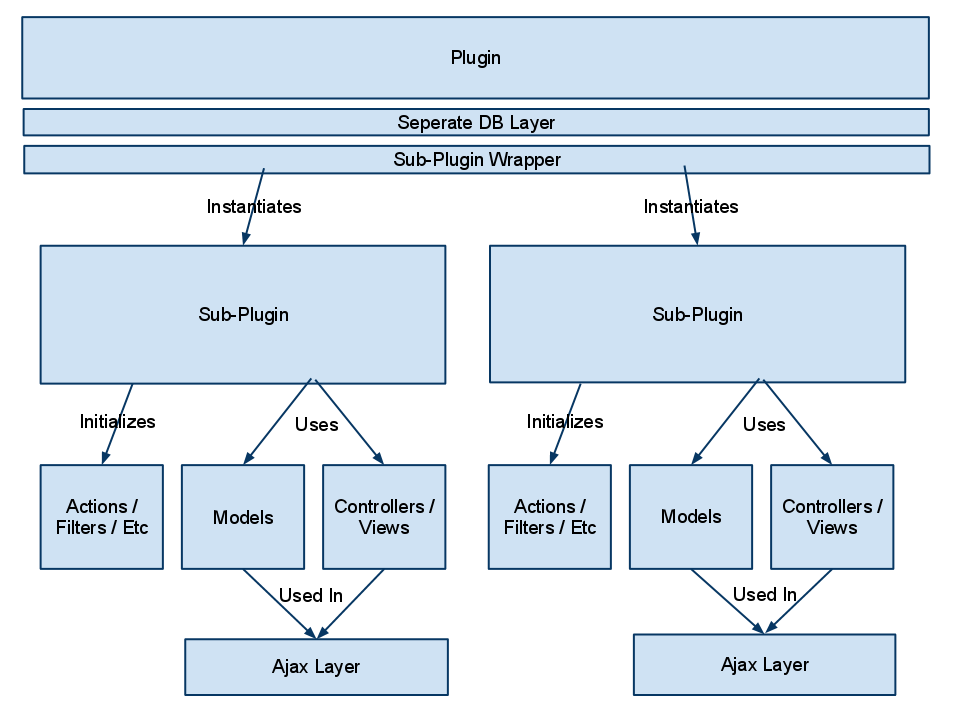
The more difficult aspect of developing this plugin as a team is the sheer size of the plugin. Realistically this could probably be split into about 6 different plugins by functionality, but we want to keep everything together in one tidy package. To illustrate the architecture, I made a quick drawing.

The first layer of the plugin is essentially a wrapper. It initializes the ORM that we are using to access the database (we are using a separate database for this plugin’s data), and includes the wrapper class. The wrapper class is where developers drop their sub-plugin include file and instantiate it’s main object. For instance, for each sub plugin there will probably be two classes instantiated in the wrapper. One being admin related functionality, and the other being for front-end display functionality. My thinking with this architecture was that we could all work on separate sub-plugins without crossing paths too frequently. This also allows us to separate the different functionality areas of the plugin in a logical manner. The other benefit to architecting the plugin like this is that it will be very easy to port to a different architecture in the future. I’m well aware that WordPress probably isn’t the best tool for the job, but it is the best tool for the team with the deadline that we have.

Thoughts

While thinking about WordPress Plugin Architecture, I cruised the source code of a lot of plugins and it seems that everyone goes about it in a different way. If you’ve ever developed a large-scale plugin with a team, how did you go about doing it? Did you run in to any problems that you didn’t foresee at the beginning of the process?

PHP Alternative Syntax

Did you know that PHP has an alternative syntax structure?  Up until about two years ago, I didn’t either.  It wasn’t until I started poking around in the WordPress core that I saw it.  Intrigued, I popped over to PHP.net and read an entry on it.  In a nutshell, the alternative syntax can go far in making your PHP code much easier to read.  The control structures if, while, for, foreach, and switch can all be expressed in the alternative syntax form.  In general, I prefer to use the alternative syntax when mixing PHP in with HTML, and the standard syntax when writing pure PHP.

If Example

// This....
if($myString == "foo"):
    echo "bar";
else:
    echo "no-foo-bar";
endif;
 
//...is equal to this.
if($myString == "food") {
    echo "bar";
} else {
    echo "no-foo-bar";
}

ForEach Example

$names = array("bob", "tom", "john");
 
//This....
foreach($names as $name):
    echo "Your name is: {$name}";
endforeach;
 
//...is equal to this.
foreach($names as $name) {
    echo "Your name is: {$name}";
}

Resources

If you’re looking for more resources on PHP’s alternative syntax, check out the documentation here, or the WordPress source code for examples.

WordPress Data Validation Functions

As a developer of WordPress plugins or themes, you need to be aware of and use data validation.  What is data validation you ask?  It’s when you make sure that the data you fetched (POST, GET, database call, external source) is the type of data that you expected.  For instance, let’s say you have a user enter a number between 1-10.  They enter the letter ‘A’.  The process of determining whether the input is an integer between 1-10 is data validation.

So what kind of data functionality does WordPress (and PHP in general) offer?  Lots!

  • intval($value) – This will cast any value as an integer.  Particularly useful for casting floating point numbers.
  • absint($value) – Returns the absolute value of a number.  For those of you with no math background, that means it will return a whole number given any floating point number.  (Ex.  absint(3.3) = 3)
  • wp_kses()This function will strip a string of any HTML tags that are not allowed.  It also makes sure that any HTML entities that are in the string are normal.
  • esc_html($string) – This will escape any HTML characters in a string.  This is handy for storing blogs of HTML in a database.
  • esc_js($string) – Escapes any javascript that it is given.  Mostly this means it escapes single and double quotes.
  • urlencode($string) – This function encodes any string you put in to it as a url-safe value.
  • $wpdb->prepare() – This function is used prepare SQL statements for database inserts.  I wrote an article about using the WPDB class with your plugin that you should check out.
  • validate_file(..) - This  is useful to validate that a file exists, and also to help prevent directory traversal attacks.
  • wp_redirect() - This is the safest was to do redirects.  Instead of using header(Location: ..), this will only allow redirects to white listed domains instead domains.
  • balanceTags($string) – If you’re allowing your users to comment on something with html tags, this function will try to make sure that the tags are balanced.
  • is_email($email) – Validates whether an email address is valid or not.

As you can see, WordPress (and PHP) include a nice array of data validation functions.  Make sure you use them as often as possible, because a large number of web based attacks could be prevented if people validated data.

WordPress Dashboard Widget Tutorial

Historically, I’ve never been a huge fan of the WordPress Dashboard.  Not because I don’t think it’s a good idea, but mostly because I don’t use it.  Before I turned this into a WordPress / PHP development blog, I posted infrequently and never saw the point of having a dashboard view.  Now that I have traffic, and hope to get more (*crosses fingers*), I’m spending a lot of time there.  Since I’m spending so much time on the dashboard, I thought I might make a bit more useful with a widget.

Note:  The full (working) version of this Dashboard Widget is available here.

Reddit RSS WordPress Dashboard Widget

Step 1:  Decide What You’re Going To Create

The first step in this tutorial is deciding what to create.  I’m personally a HUGE fan of Reddit, but often enough I’m unable to read it because I’m busy managing this blog.  So, why not bring Reddit to me?  This tutorial will show you every step of how to create a WordPress Dashboard Widget that displays Reddit’s RSS feed.

Step 2:  Write The Display Code

As most readers here know, WordPress is well on it’s way to being a full-fledged CMS.  As with any good CMS, extending any part should be easy.  It’s no different with the WordPress Dashboard.  Using the wp_add_dashboard_widget function, you can hook into the WordPress Dashboard and drop in your own widgets.  But first, we must write the widget itself.

1
2
3
4
5
6
7
8
9
10
11
12
13
14
15
16
17
18
19
20
21
22
23
24
25
26
27
28
29
30
31
32
33
34
35
36
37
38
39
40
41
42
function reddit_rss_dashboard_widget_function() {
     $rss = fetch_feed( "http://www.reddit.com/.rss" );
 
     if ( is_wp_error($rss) ) {
          if ( is_admin() || current_user_can('manage_options') ) {
               echo '<p>';
               printf(__('<strong>RSS Error</strong>: %s'), $rss->get_error_message());
               echo '</p>';
          }
     return;
}
 
if ( !$rss->get_item_quantity() ) {
     echo '<p>Apparently, there is nothing happening on Reddit!</p>';
     $rss->__destruct();
     unset($rss);
     return;
}
 
echo "<ul>\n";
 
if ( !isset($items) )
     $items = 10;
 
     foreach ( $rss->get_items(0, $items) as $item ) {
          $publisher = '';
          $site_link = '';
          $link = '';
          $content = '';
          $date = '';
          $link = esc_url( strip_tags( $item->get_link() ) );
 
          $content = $item->get_content();
          $content = wp_html_excerpt($content, 250) . ' ...';
 
         echo "<li><a href='$link'>$link</a> - $content</li>\n";
}
 
echo "</ul>\n";
$rss->__destruct();
unset($rss);
}

Most of the above code is pretty easy to follow.  But here’s  breakdown of what happens if you’re a bit confused.

  1. We use the fetch_feed function to get the RSS feed from the supplied URL.  In this case, it’s Reddit’s RSS feed.
  2. Check to see if there have been any errors (is_wp_error).
  3. Check to see if there was anything on the feed. ($rss->get_item_quantity).
  4. Loop through the fee printing out list items.

Step 3:  Add The Widget To The Dashboard

In this step, you need to call wp_add_dashboard_widget from a function.

1
2
3
function reddit_rss_add_dashboard_widget() {
     wp_add_dashboard_widget('reddit_rss_dashboard_widget', 'Reddit RSS', 'reddit_rss_dashboard_widget_function');
}

The first argument in this function is the unique id that you give your widget.  The second argument is the widget’s name.  And the 3rd argument is the display function (which we just wrote).

Step 4:  Initialize Your Widget

The fourth and final step to creating a WordPress Dashboard Widget is to use the add_action function to add it to the setup.

1
add_action('wp_dashboard_setup', 'reddit_rss_add_dashboard_widget');

Step 5:  Clean Up

Once you have everything written, save it all in a file called reddit_dashboard_widget.php.  From there, zip it up and upload it to your WordPress install as a plugin.  Once activated, you’ll have Reddit’s RSS feed as a Dashboard Widget.  It will show up towards the bottom, so you’ll need to re-order it to your liking.

Final Thoughts

As I brought together this dashboard widget as a proof of concept, I got to thinking about how it could be improved.  One way would be to use more Ajax to fetch the updated feed.  Or if the RSS feed doesn’t update frequently enough, we could scrape the page ever n minutes to get updated content.  Also, at the suggestion of a reader, I’m going to start including full (working) examples with each tutorial.  Enjoy!

Download the WordPress Reddit Dashboard Widget Here.

WordPress Shortcode API Tutorial

One neat feature of WordPress plugins is shortcode.  Shortcode enables a user to put something like “[myplugin]” in their posts or pages and have it display content from their plugin.  Making WordPress shortcode work for you isn’t terribly difficult, but without some help it can be confusing.  In this tutorial, I’ll show you how to use shortcode in your plugins.

Wordpress Shortcode API Tutorial

Shortcode Example

Let’s say you want to print out the current time anywhere in your post where you put “[time]“.  Easy enough!  Open up your theme’s functions.php and enter the following.

function time_func($atts) {
     $thetime = time();
     return date("g:i A",$thetime);
}
add_shortcode('time', 'time_func');

So now, “[time]” will be replaced with the current server time formatted like hour:minute AM/PM.  But what if you aren’t sure what format you want the time to come out in?  Well, you just need to add an attribute.  I’m going to be using PHP’s date() function formatting in this example.

function time_func($atts) {
     extract(shortcode_atts(array(
          'timeFormat' =&gt; 'g:i A'
          ), $atts));
     $thetime = time();
     return date($timeFormat, $thetime);
}
add_shortcode('time', 'time_func');

What the above code does is add the possibility of an attribute to your shortcode.  So you could use it like “[time timeFormat='d.m.Y']“, which return today’s date.  In the extract function, you can specify the default value (which I set as hour:minute AM/PM).  You can add as many attributes as you need to your shortcode.

For more information, please see the WordPress Shortcode API.

WordPress 3.1 Features

While the release of WordPress 3.1 is still a few months away, a lot of people have begun to wonder what new features might be added and what bugs may be fixed.  The WordPress developers have finally held a meeting and came up with a plan of what they would like to include in the 3.1 release.

Features

  • Internal Linking  – This is by far the most exciting feature to get in to WordPress 3.1.  What this will allow you to do is easily link to pages within your site.  Instead of having to go to the page, copy the URL, and then paste it into an external link, you’ll be able to click the “Internal Link” button and choose from your posts.
  • Bug Fixes - As always, there will be numerous bug fixes included in this release of WordPress.
  • Post Templates – In many a CMS, you are able to create a bunch of different templates by which you can display your content.  WordPress has started down this path a little bit with custom post types, but if you wanted to display a normal post multiple ways you were sort of out of luck.  In WordPress 3.1, designers and developers will be able to create multiple templates and users will be able to choose how their post is displayed.
  • Theme Admin UI – This upgraded will make the way you browse and administer your WordPress themes much easier.  The current system is a bit clunky, and they hope to do away with it completely and replace it with an improved version.
  • Ajax Admin – It’s no secret that WordPress doesn’t use Ajax much on the back end.  It looks like they developers have finally decided to change this with 3.1.  This update should hopefully smooth out the pagination when browsing your posts in the admin.  It should also provide advanced search and sorting functionality.
  • The Admin Bar - WordPress.com users have a neat feature called the “Admin Bar”.  What this does is connect the back and front end of the site through an easy to use bar that appears at the top of the screen for logged in users.  From the discussions, it looks like this may have to be enabled (similar to featured images), but it is still a welcome feature to most.

Release Schedule

  • October 15, 2010 – Feature freeze.
  • November 15, 2010 – Beta period starts.
  • December 15,2010 – Release.

Wordpress 3.1 Features

Securing Your WordPress Plugin: Nonces

So you’ve created an epic contact form plugin for your WordPress install.  It seems secure enough.  You’re validating input, checking input types, and doing everything else right.  After it’s been up for a few weeks, you take a look at your database and notice you’ve got a bunch of crap in there.  “How could this happen?!” you scream!

Well, it probably had something to do with a Cross Site Request Forgery (CSRF).  Cross site request forgeries happen when someone starts submitting information to your form’s processing controller from another domain.  This is easy enough to do, because you can set the action field of a form to anything you want.  If you aren’t careful how you process your form, CSRF attacks can be a huge problem.   So how can you secure your plugin against CSRF attacks?  By using a nonce (Number used once).

Nonces are unique identifiers that you can use to make sure your form is coming from the right place.  To use them, you follow three simple steps.

  1. Create the nonce identifier. (wp_create_nonce)
  2. Place the identifier in your form or query string.
  3. Verify that the nonce is correct. (wp_verify_nonce)

In practice, it looks something like this.

1
2
$nonce = wp_create_nonce("my-plugin-nonce");
echo "<a href='controller.php?nonce={$nonce}'>Click here!</a>";

And then in your controller/processor…

1
2
$nonce = $_GET['nonce'];
if(!$wp_verify_nonce($nonce, "my-plugin-nonce")) due("No CSRF for you!");

That’s really all there is to it.  In literally 4 lines of code, you can make your plugin that much more secure.  On a side note, if you are using ajax to submit a form or pull data, you can pass the nonce through as a form field (or as part of the query string), but you’ll need you use a different function to verify it (check_ajax_referer).

1
check_ajax_referer("my-plugin-nonce");

Additional Resources