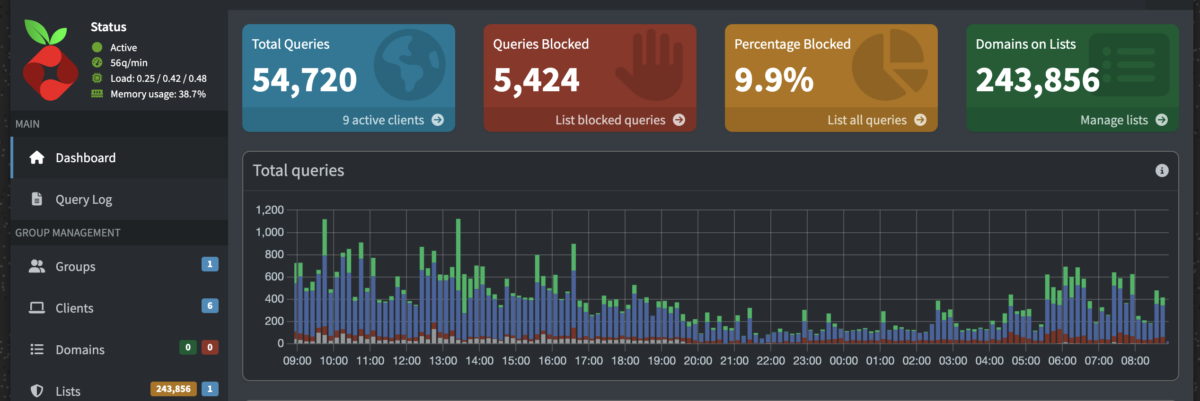
If you don’t want your kids watching YouTube without permission, using your PiHole to sink all DNS resolution for YouTube domains is a quick and effective way to get it done.
Step 1: The Block List
You need to add this block list to your PiHole. It can be downloaded here.
# Main YouTube Domains
youtube.com
www.youtube.com
m.youtube.com
music.youtube.com
kids.youtube.com
youtubekids.com
youtu.be
yt.be

# Video Playback & Streaming CDNs
googlevideo.com
redirector.googlevideo.com

# Assets, Images, and Thumbnails
ytimg.com
s.ytimg.com
i.ytimg.com
i1.ytimg.com
i2.ytimg.com
i3.ytimg.com
i4.ytimg.com
yt3.ggpht.com
yt4.ggpht.com

# APIs and Web Services
youtubei.googleapis.com
youtube-nocookie.com
youtubeeducation.com
youtube-ui.l.google.com
ytimg.l.google.com
wide-youtube.l.google.com
Step 2: Wildcard Domains
YouTube uses dynamically generated subdomains of googlevideo.com to stream content. Block lists unfortunately do not support regular expressions, but the main PiHole interface does! Add these to the regex filter under “Domains”.
(^|\.)youtube\.com$
(^|\.)googlevideo\.com$
(^|\.)ytimg\.com$
(^|\.)youtu\.be$
(^|\.)youtube-nocookie\.com$
(^|\.)youtubekids\.com$
That’s it! You now can enable/disable YouTube as you see fit!